Want to quickly change your Node version? nvm is the tool you need.
Getting started
Why nvm? Node is an executable. For example, on Linux, if you've installed your distribution's package, it will be present in a directory like /usr/local/bin.
The problem is that this executable corresponds to a specific, fixed version, and can only be updated to a newer version via your package manager.
nvm, however, allows you to have multiple versions coexisting on the same machine.
1. Installation
nvm has several installation methods, including a script to install it automatically. As of the publication date of this article, you can launch (see
the README) :
curl -o- https://raw.githubusercontent.com/nvm-sh/nvm/v0.39.5/install.sh | bash
This script will install nvm in ~/.nvm and will add lines to your shell's configuration file that must be executed for nvm to work. To use nvm, open a new shell or run the command source [fichier] where [file] is your shell's configuration script (~/.bashrc, ~/.zshrc or similar depending on your setup)
You can see the list of node versions available for download by running
nvm ls-remote
2. Usage
We will install two different node versions:
nvm install 12.16.3
A node -v tells you that the executable is version 12.16.3.
nvm install 14.3.0
A node -v tells you that the executable is version 14.3.0, and if this is the version you need for your project, you can directly run it!
You can then freely change versions using nvm use [numéro de version].
To better understand the magic behind nvm, let's explore the installation folder's structure.
The installation script cloned the git repository into ~/.nvm.
ls ~/.nvm
The most important folder in practice is the one called versions/node, which stores the installed versions in different folders and makes them coexist.
cd ~/.nvm/versions/node
You should see the following structure appear:
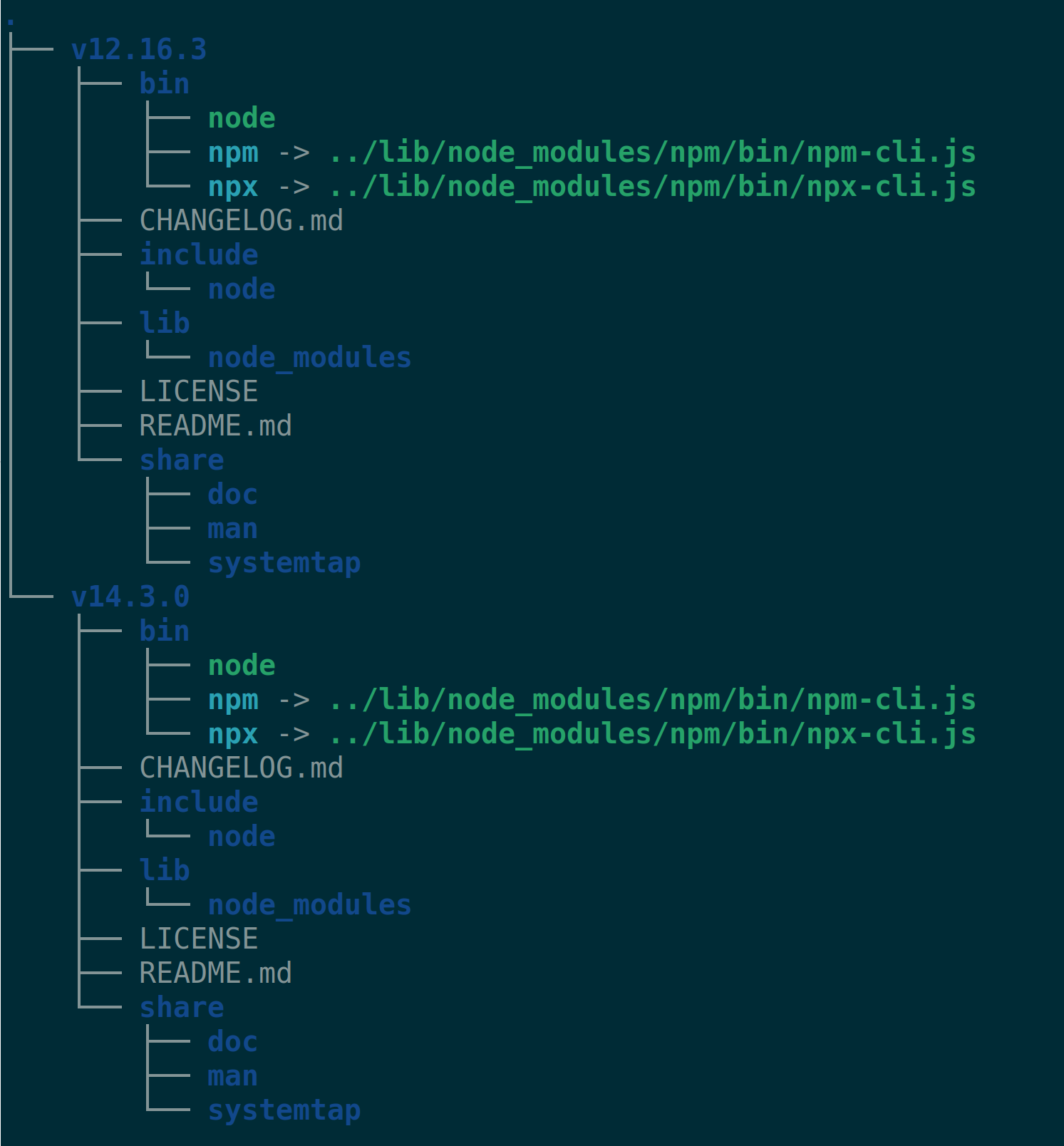
The structure of the `~/.nvm/versions/node` subfolder
In each subfolder, there is a directory bin which groups the executables corresponding to the version in question (npm and npx are symbolic links).
You can now verify that ./v12.16.3/bin/node -v and ./v14.3.0/bin/node -v give you the expected version numbers.
You can find these installation paths by running:
nvm which current
nvm which 12.16.3
Change versions even faster
If you work on numerous projects and get lost in version numbers, the following aliases should make your life easier:
nvm alias project1 12.16.3
nvm alias project2 14.3.0
You can now directly change versions with nvm use project1 and nvm use project2.
There are useful aliases already configured, which you can see by typing nvm alias followed by tab in the terminal:
If you wish to write nothing at all, that's also possible! Place a file .nvmrc at the root of your project and use nvm use, nvm install without specifying a version inside it.
Versions in the Node.js ecosystem
You may have noticed that node and npm versions are in the following format:
X.Y.Z
And it's no coincidence that this format is also used for your packages in your package.json and package-lock.json.
Known as semver, semantic version management is at the heart of the ecosystem and every JavaScript developer would benefit from mastering it.
The first number, “X”, corresponds to the major version: when this number is incremented, it indicates that the new version is not backward-compatible with the previous version.
The second, “Y”, corresponds to the minor version. A change indicates that more features are available or that some are obsolete, but that the API remains backward-compatible. Version “Z” indicates a bug fix.
We must reset “Z” to zero when incrementing “Y”, and we must reset “Y” and “Z” to zero when incrementing “X”.
However, nothing prevents a developer from incrementing “X” or “Y” by publishing their npm package, and unfortunately,
error is human.
A quick look into package.json
In your package.json, you have surely already seen these version numbers embellished with decorations: “^4.12.2”, “<=12.0.1”, “~0.4.77” or not, as in “1.0.3”. Sometimes, you even see complicated arrangements: “<1.0.0 || >=2.5.1” or “>4.0.1 <=5.3.0”.
Here is the translation:
1.0.3: npm must install version 1.0.3, and no flexibility is allowed;
^4.12.2: npm must install the most up-to-date version after 4.12.2 included, but not the one after 5.0.0. Essentially, no version that is not backwards compatible with 4.12.2;
~0.4.77: npm must install the latest 0.4.x version;
<=12.0.1: either version 12.0.1 if it exists, or a previous version. This can be useful to give npm a choice, for example if another package requires this package at version 11.0.6.
“<1.0.0 || >=2.5.1”: all versions except those between 1.0.0 and 2.5.0 (whose API might not suit us).
“>4.0.1 <=5.3.0”: all versions between 4.0.2 and 5.3.0 inclusive.
If these examples haven't quenched your intense curiosity, you can delve into
the parser of npm.
Node versions
Node is an executable whose versions follow “Semantic versioning”.
Its release cycle is very regular, with a new major version created every 6 months.
Odd major versions (13.*.*, 15.*.*, etc.) are abandoned after 6 months. Even major versions (14.*.*, 16.*.*, etc.) have a different fate after these 6 months:
they are put into long-term support (LTS), which lasts 12 months. Updates and bug fixes may occur;
at the end of this period, they are maintained for an additional 18 months, during which bugs are resolved.
Moral of the story, if you're starting a project or updating its version, prefer the current even major version of Node.
Errors due to Node versions
Suppose that if you run npm install, npm complains by writing:
npm WARN EBADENGINE Unsupported engine {
npm WARN EBADENGINE   package: '@angular-devkit/core@x.y.z',
npm WARN EBADENGINE   required: { node: '>= 12.4.0 <12.9.1', npm: '^6.10.0 || ^7.5.6',},
npm WARN EBADENGINE   current: { node: 'v18.18.0', npm: '9.8.1' }
npm WARN EBADENGINE }
We should therefore have:
a Node version greater than or equal to 12.4.0 and less than or equal to 12.9.0 (currently, this is not the case, since npm is at version 18.18.0)
an npm version between 6.10.0 inclusive and 7.0.0 exclusive or between 7.5.6 inclusive and 8.0.0 exclusive (currently, this isn't the case, as npm is at version 9.8.1).
A quick detour via nvm ls-remote shows me the possible versions after 12.4.0.
nvm use 12.4.0 indicates that this version comes with npm version 6.9.0, which isn't suitable according to my error message.
After a few installations, I realise that Node version 12.7.0 is suitable and resolves my error message.
I can uninstall unnecessary versions using nvm uninstall [version].
Conclusion
nvm is a utility that can prove very useful if you do not control the Node version on the server, if you are working on a project where an impromptu update would be unwelcome by other collaborators, or if it broke certain old packages. There are other version managers for
node such as
n (
available here), but the number of versions is more limited.